


Why Your Confluence Wiki Needs SharePoint Content
Confluence is where teams write things down: meeting notes, project pages, documentation, plans. SharePoint is where organizations keep the “official” stuff: Word files, Excel sheets, contracts, reports, presentations.
Both tools are important. The problem is, they usually live in two separate worlds. And when those worlds don’t connect, your wiki becomes a patchwork of half-information:
A Confluence page explains a process but links out to SharePoint for the actual form.
A project page says “see Excel file here,” but the link is broken or points to the wrong version.
An HR space has a policy summary in Confluence, while the real policy is hidden three folders deep in SharePoint.
It’s like trying to read a book where half the chapters are missing and instead you just get sticky notes saying “check another shelf.”
That’s exactly the gap SharePoint Connector for Confluence closes.
Why the split causes trouble

When Confluence and SharePoint stay apart, teams run into the same issues over and over again:
Too many links – pages become long lists of “click here” references.
Lost context – readers have to leave Confluence to find the content, breaking the flow.
Version chaos – you don’t know if the document in SharePoint is the same one mentioned in Confluence.
Low trust – if people can’t be sure they’re looking at the latest content, they stop relying on the wiki.
For something that’s supposed to be your knowledge base, that’s a problem.
What changes with SharePoint Connector for Confluence
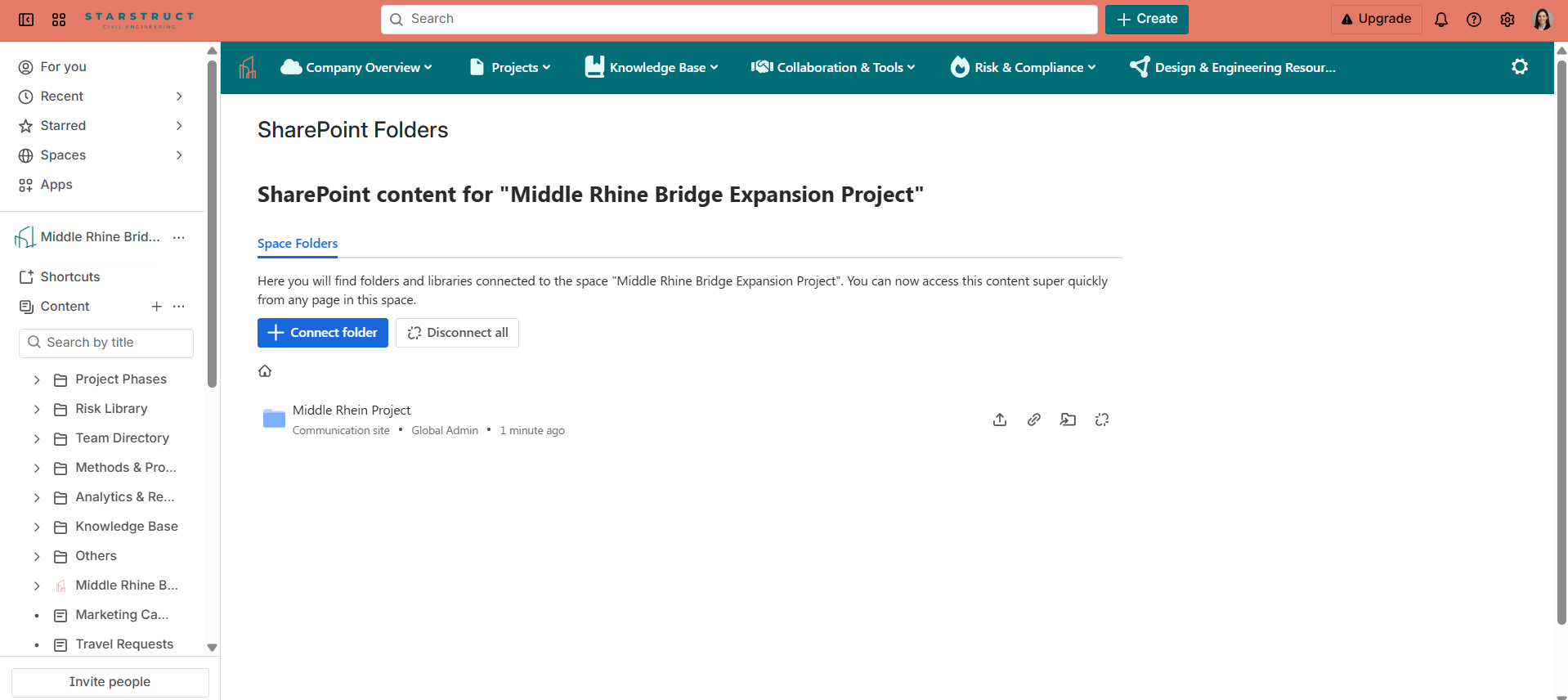
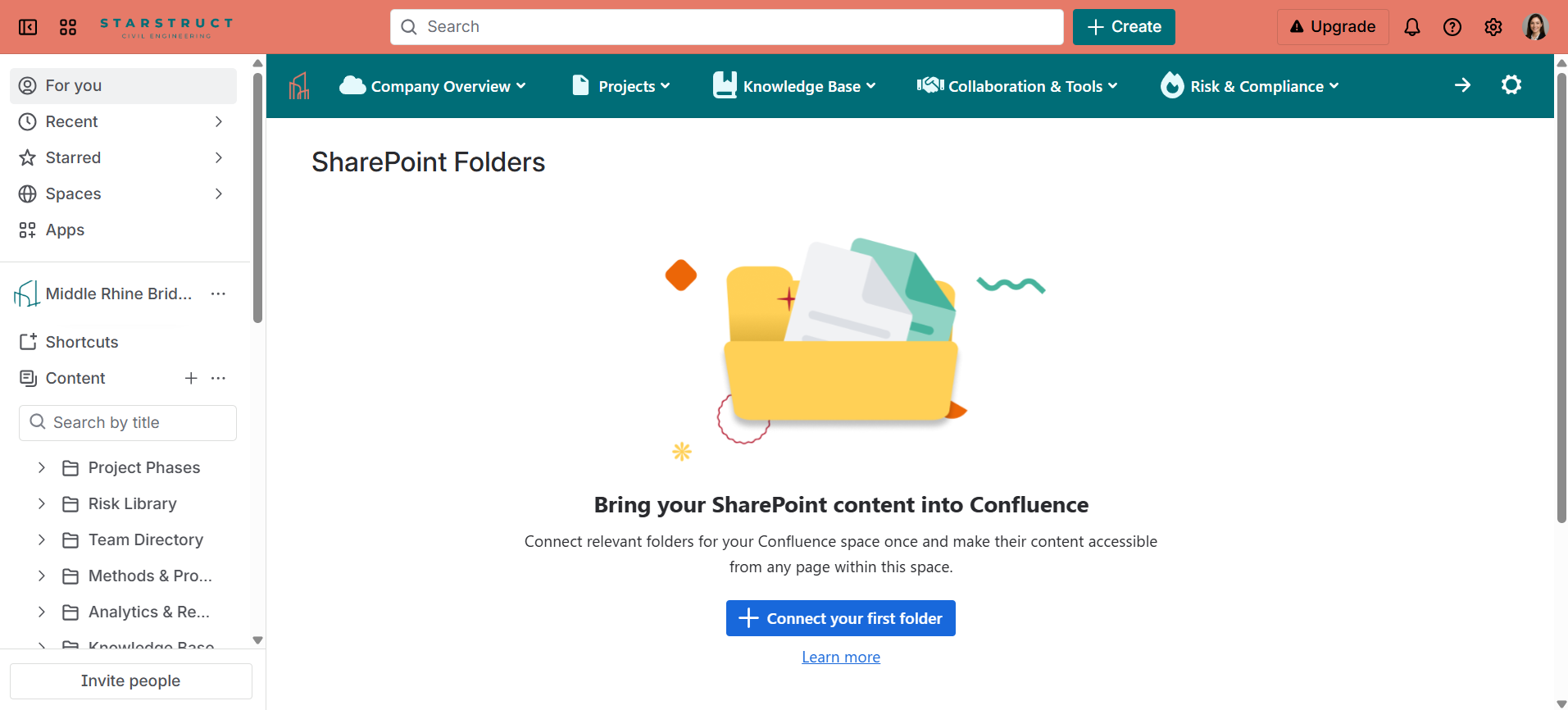
The Connector turns Confluence pages into complete, reliable hubs by bringing SharePoint content directly into them. That means:
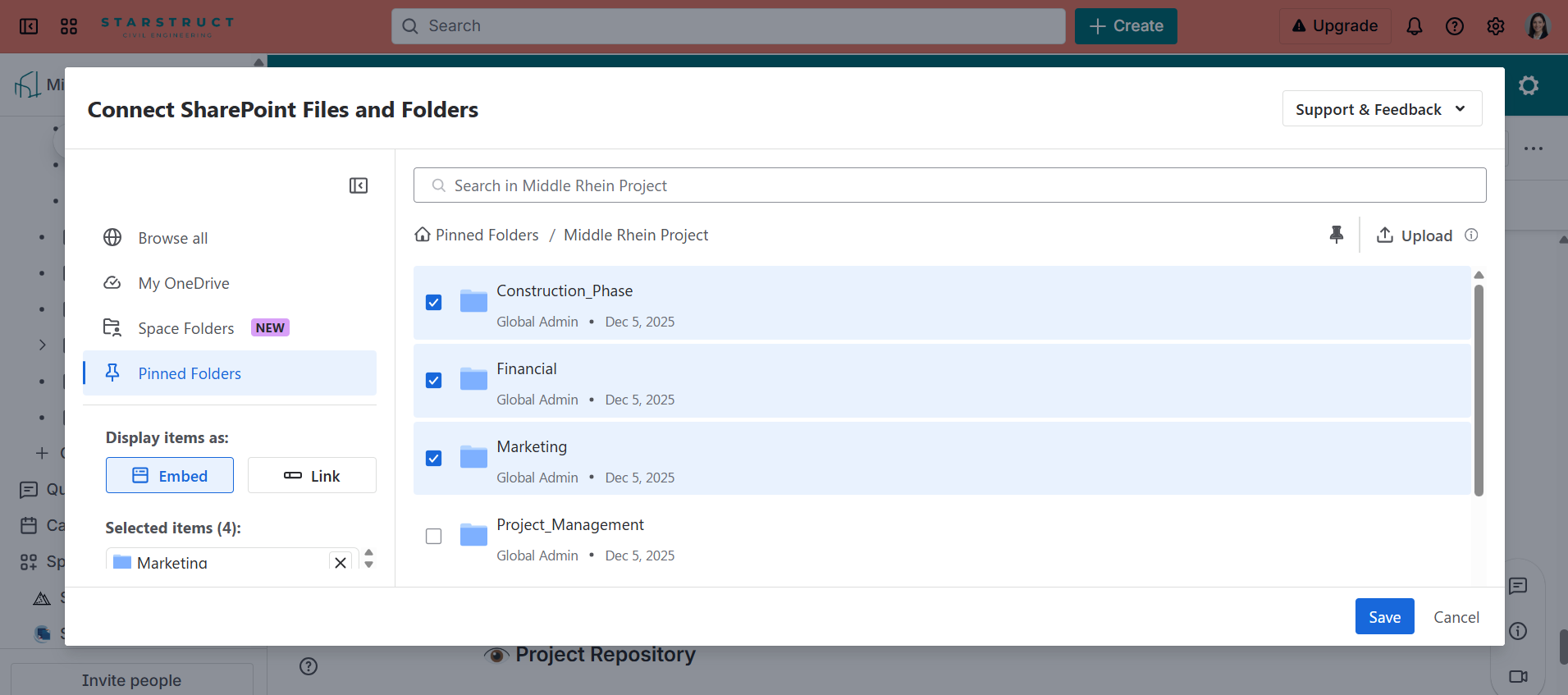
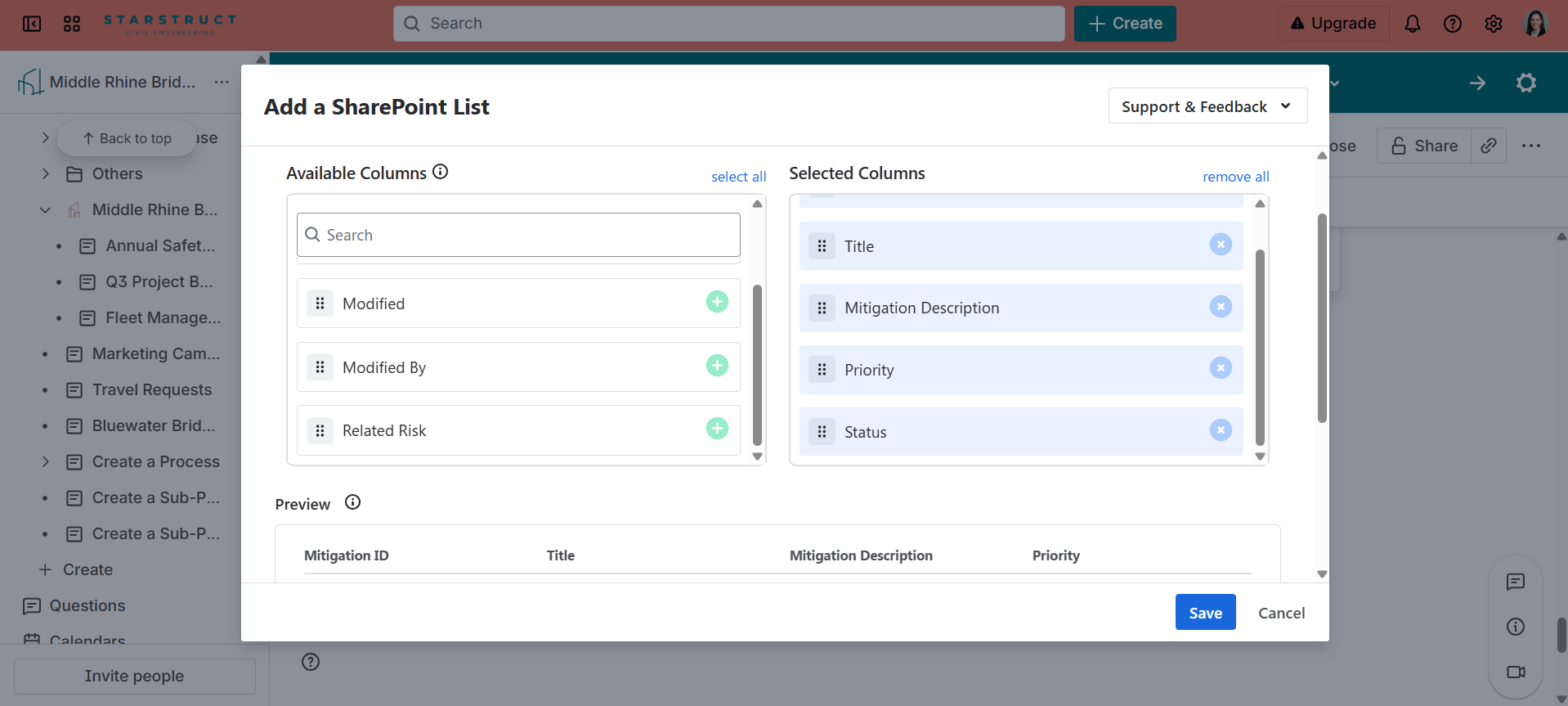
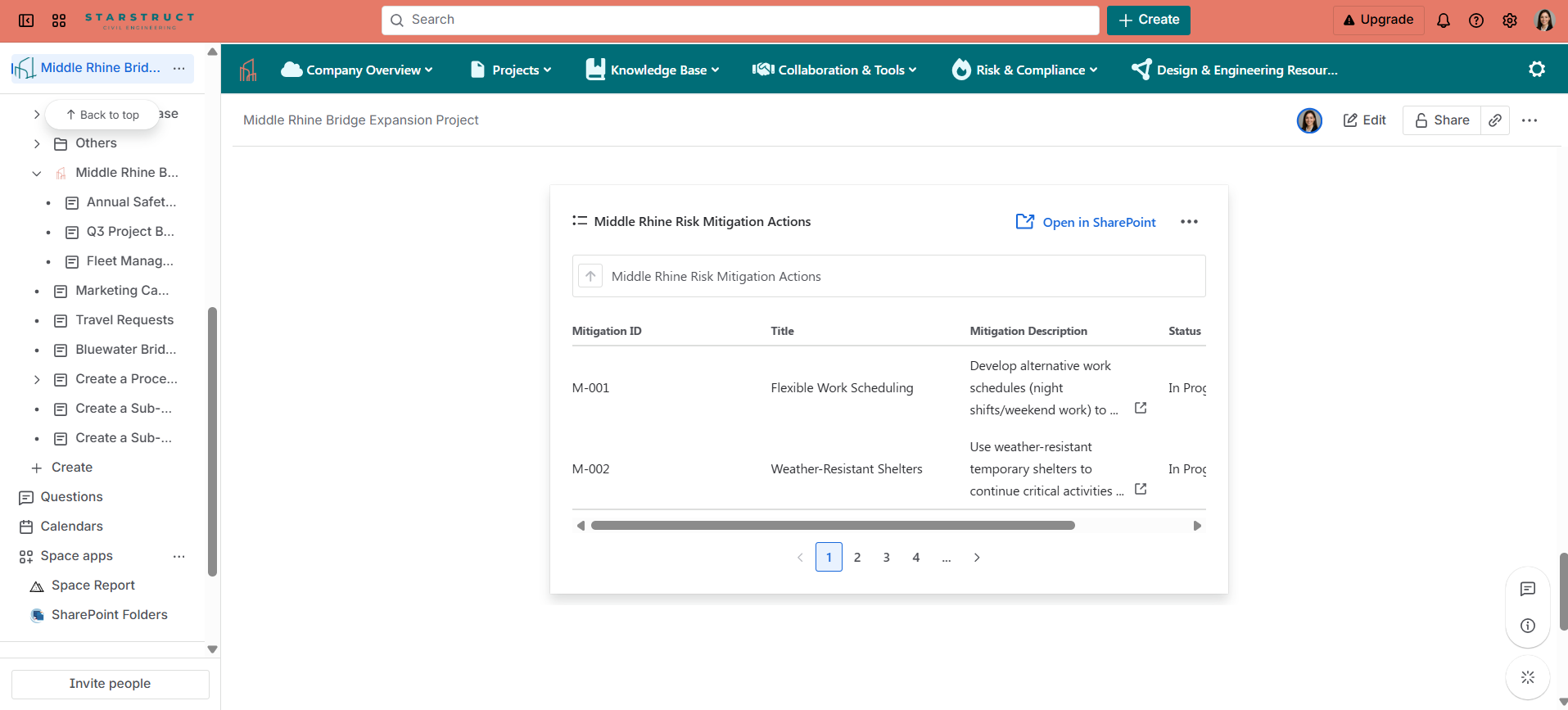
Documents where you need them – Word, Excel, PowerPoint, PDFs, and more can be embedded right in the page.
Always up to date – changes made in SharePoint automatically show in Confluence.
No security headaches – SharePoint permissions still apply, so content stays protected.
More useful pages – Confluence isn’t just commentary anymore; it’s the actual source of information.
Instead of bouncing back and forth, people stay in Confluence and see the content alongside the explanations.
How teams use it in practice
Project management: Combine project updates in Confluence with the real plan or Gantt chart stored in SharePoint.
HR and compliance: SharePoint holds the official HR policies and compliance docs, but they’re displayed right in the wiki so employees can find and read them.
Reporting: A Confluence status page can show the latest financial or operational reports directly from Excel in SharePoint.
Knowledge base: Step-by-step guides in Confluence can be paired with the detailed files and templates from SharePoint.
Why it matters
The whole point of a wiki is to be the place where people go to find answers. But if half the time it just points them somewhere else, they lose trust in it. By pulling SharePoint content into Confluence, the wiki becomes what it was meant to be: a central, reliable, and complete knowledge base.
It’s not about adding more tools - it’s about making the ones you already have actually work together.
