


How SharePoint Content Appears in Confluence with Space Folders and Byline?
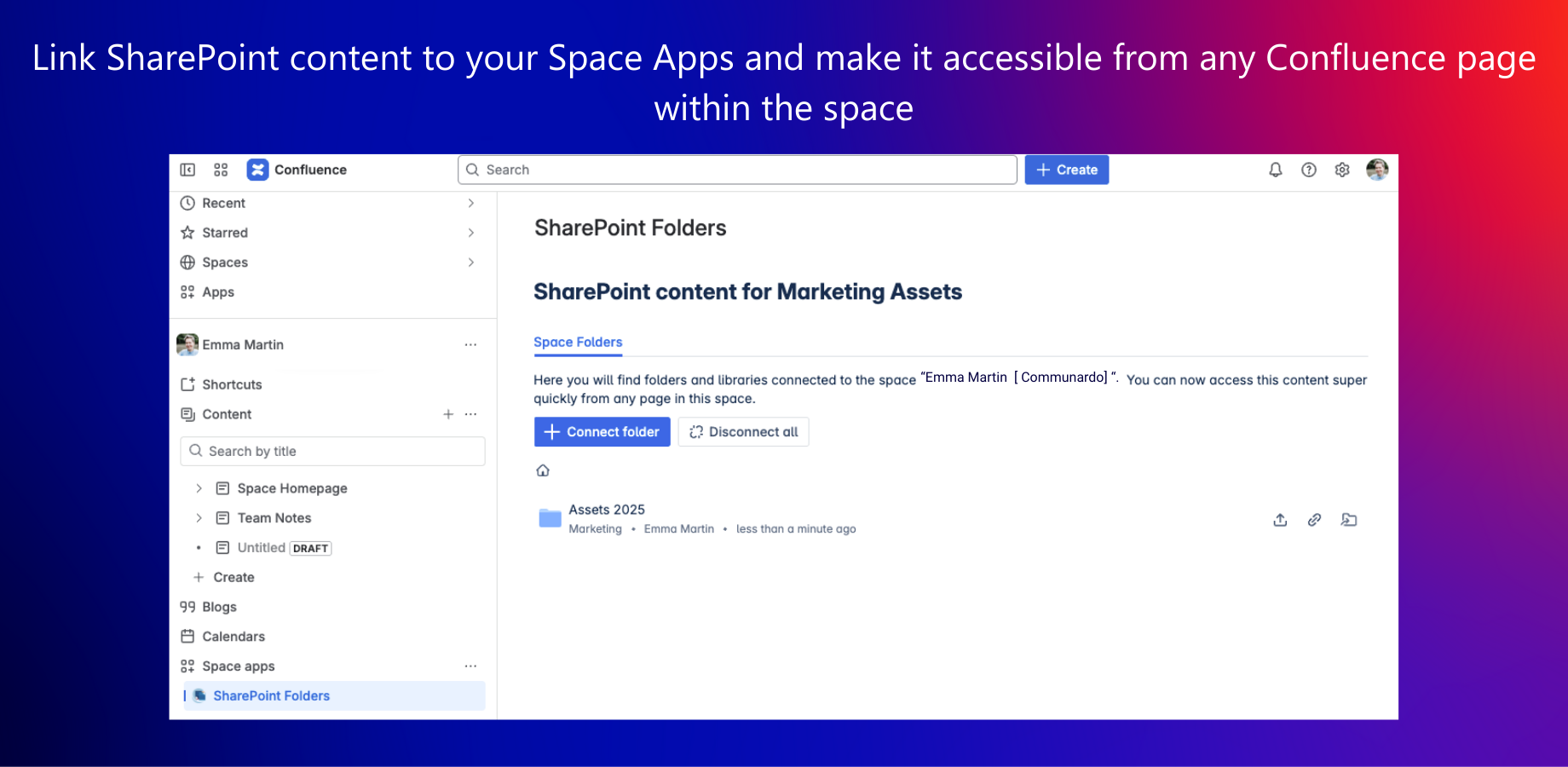
Space Folders bring SharePoint folders into the Confluence sidebar, giving teams a clear view of the content they use every day.
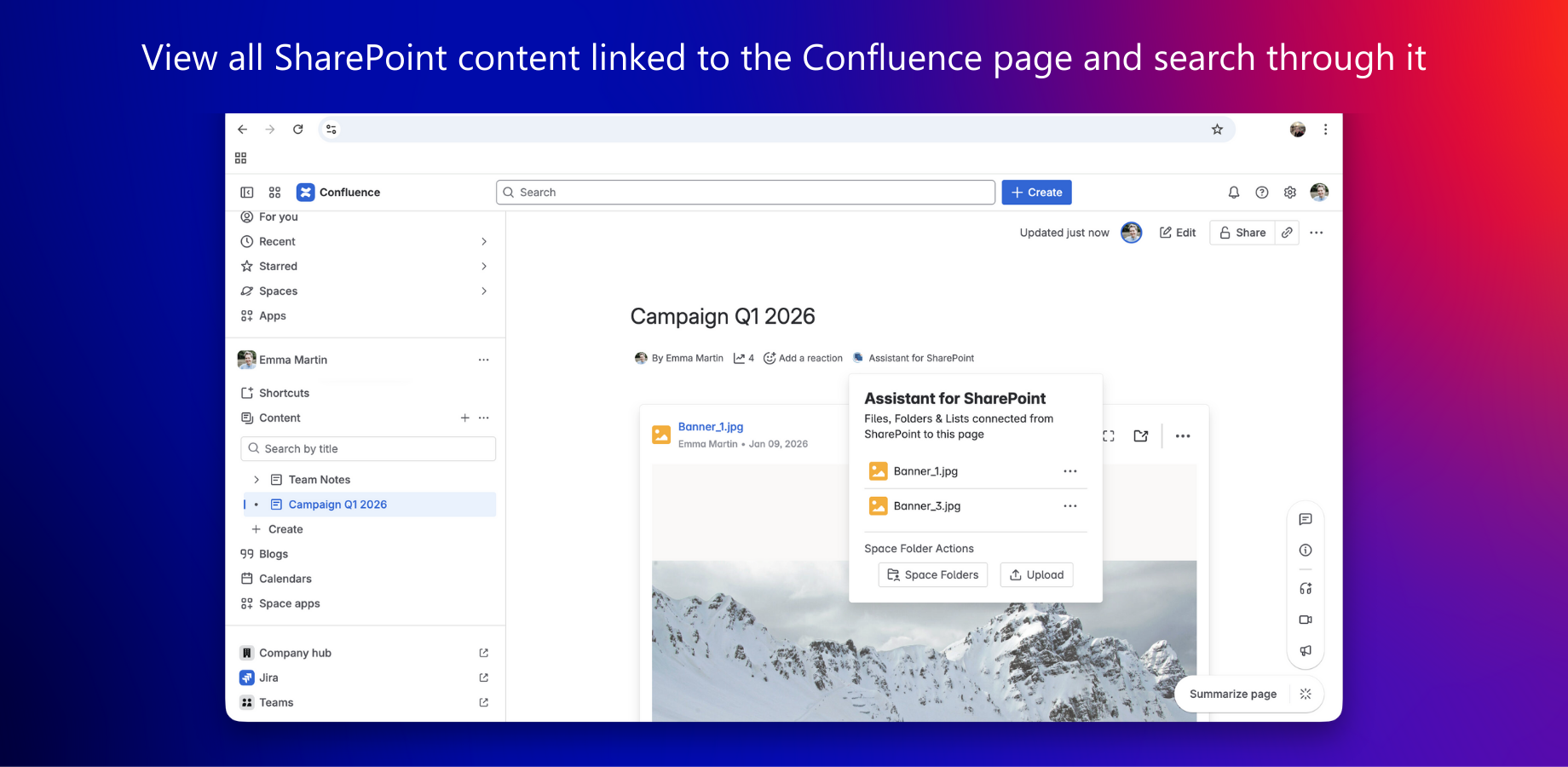
Byline, Assistant for SharePoint shows all connected SharePoint files, folders, and lists on the Confluence page, making it clear what is linked to the page. Beyond the overview, it also provides a search functionality: users can search within those linked items to quickly locate the exact file or folder they need. This reduces time spent searching and helps teams stay aligned on the most current information.
Use Cases
1. HR & People Operations – Centralized Employee Documents
Space Folders on the sidebar:
The HR space includes SharePoint folders such as “Policies,” “Contracts,” and “Training Materials,” giving the team direct access to the documents they maintain.
Byline - Assistant for SharePoint:
It lists all SharePoint files, folders, and lists connected to the page, such as contracts, forms, and training materials, so teams can see exactly what is linked to that specific Confluence page. Teams can also zero in on the right policy or contract instantly using Byline’s search.
Impact: The HR team has all relevant documents in one place, making it straightforward to locate and work with the content they need.
2. Marketing – Campaign Assets in One Place
Space Folders on the sidebar: The campaign space includes SharePoint folders such as “Design Assets,” “Social Media Plans,” and “Press Releases.”
Byline -Assistant for SharePoint:
It highlights all SharePoint items connected to the page, from design drafts to calendars, giving the team a clear picture of everything that supports the campaign. When needed, the team can quickly pull up the exact asset through Byline’s search.
Impact: Teams work in Confluence while relying on the most current assets stored in SharePoint.
3. Finance – Quick Access to Reports
Space Folders on the sidebar: The Finance space shows SharePoint folders such as “Quarterly Reports”, "Budgets," and “Forecasts.”
Byline - Assistant for SharePoint:
It brings all linked SharePoint financial documents into one view on the page, so teams can immediately see the reports and data that support the topic. With search, they can jump straight to the latest quarterly report or budget file.
Impact: Departments can view and reference financial information directly in Confluence without having to search SharePoint.
4. Legal & Compliance – Updated Documents
Space Folders on the sidebar: The Legal space links to SharePoint folders such as “Contracts” and “Compliance Docs.”
Byline - Assistant for SharePoint:
It highlights all SharePoint files and lists connected to the page, including ISO documents and audit reports, so teams can see which resources are linked to that topic. Byline’s search ensures the right compliance document or contract is always at hand.
Impact: Teams always reference the latest approved documents, reducing the risk of using outdated versions.
5. IT & Operations – Project Information
Space Folders on the sidebar: The IT project space shows SharePoint folders such as “System Architecture” and “Release Notes.”
Byline - Assistant for SharePoint:
It brings together all SharePoint files, lists, and documents connected to the page, including change logs, technical files, and other project resources, so teams can see the full set of relevant content in one place. Search helps them quickly pinpoint the right release note or technical file.
Impact:
Teams can use Confluence as a centralized project repository, accessing all project information without switching between tools.
6. Executive & Board Meetings – Easier Preparation
Space Folders on the sidebar: The Board space shows SharePoint folders such as “Agendas,” “Presentations,” and “Reports.”
Byline - Assistant for SharePoint:
It surfaces all SharePoint content linked to the page, including files and lists needed for the meeting, so the team can see what’s relevant at a glance. The search functionality allows executives to instantly locate the right agenda or presentation.
Impact: Executives prepare faster, and assistants spend less time gathering documents manually.
See the app in action

Stay Connected to Your SharePoint Content
With Space Folders, relevant SharePoint folders, access them in the Confluence sidebar, so teams no longer waste time searching for documents or folders to do their work. Everything they need is linked in their Confluence space.
Bylining shows a clear view of all embedded SharePoint files, folders, and lists right on the page. Whenever someone wants to check what’s connected, they can see it instantly - no switching between tools, no hunting for files. And with its built‑in search functionality, they can instantly locate the specific item they’re looking for.
This makes it easier for teams to stay organized, access the latest documents, and work more efficiently.
If you have any questions or suggestions about using Space folder and byline, get in touch with us - we’re happy to help!
